Before sharing a photo, it is worth taking a second look at what appears in the background. A face, vehicle license plate, house number, identity document, or line of confidential text can reveal more than intended.
Blur Image provides a straightforward way to hide those details online. Upload a photo, mark the areas that should not be visible, choose how to obscure each area, and download the protected result. There is no image-editing software to install.
What Is Blur Image?
Blur Image is an online photo privacy tool for manually obscuring selected parts of an image. It is useful when you know exactly what needs to be hidden and want control over the size, position, and effect used for every area.
For example, a seller preparing a car photo for an online listing can pixelate the license plate while leaving the rest of the vehicle untouched. Someone sharing a family photo can apply a softer blur to a bystander’s face. A document screenshot can use a solid cover over an account number or address.
The tool supports JPEG, PNG, GIF, BMP, and WebP uploads up to 10 MB. Finished images can be downloaded as PNG or JPEG.
How to Blur a Photo Online
The process takes only a few steps:
- Open Blur Image and choose an image, or drag and drop it into the upload area.
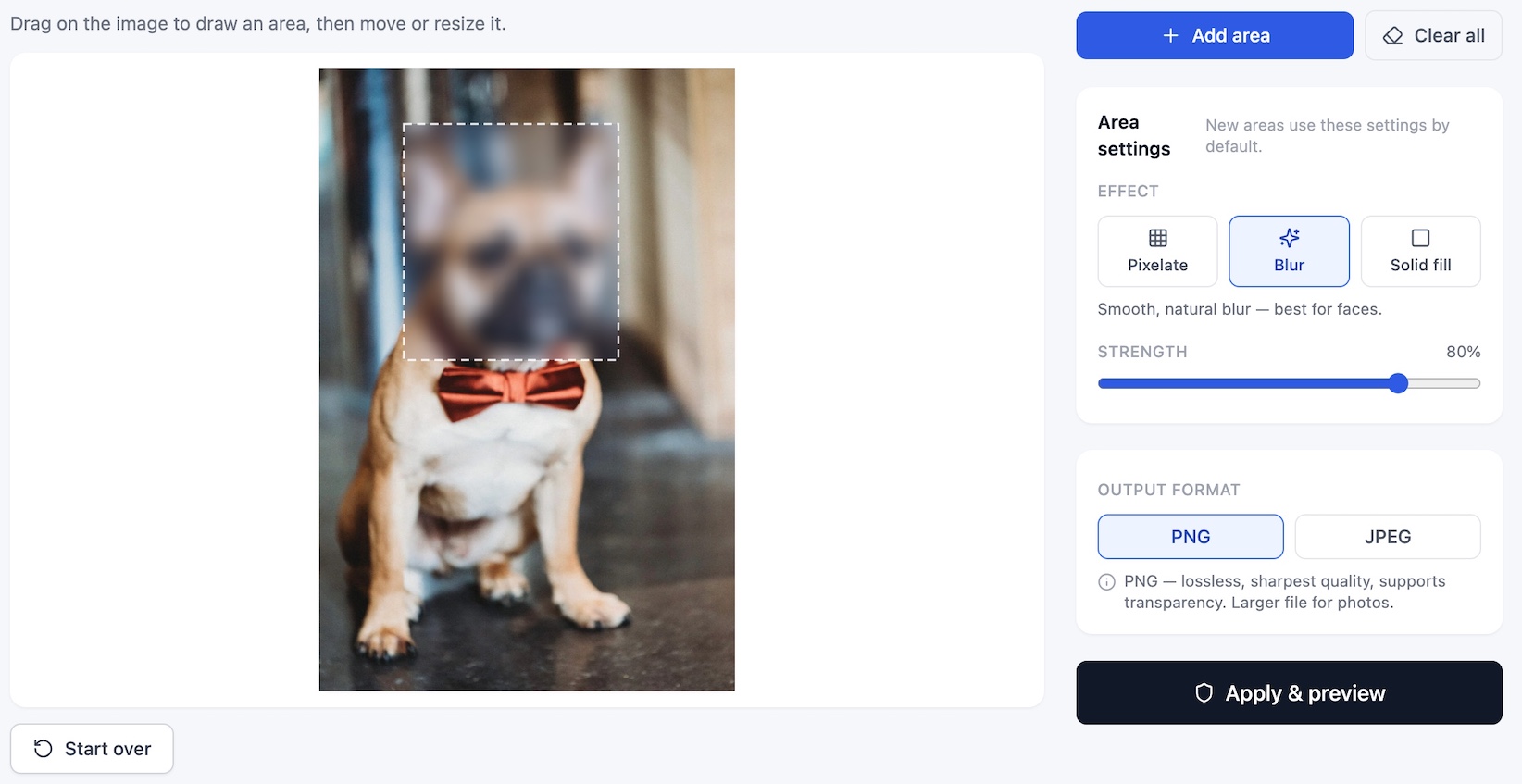
- Drag over the photo to draw a rectangular area around a face, license plate, address, or other private detail.
- Move or resize the area until it covers the information completely.
- Choose Pixelate, Blur, or Solid fill. You can add several areas and configure each one separately.
- Select PNG or JPEG, click Apply & preview, and download the protected image.
If the result needs an adjustment, choose Back to editor. The selected areas remain available, so you can reposition them or change their settings without uploading the image again.
Choose the Right Effect for Each Area
Blur Image offers three ways to hide information:
- Blur creates a smooth, natural-looking effect. It works well for faces and parts of a photo where a softer transition is preferred.
- Pixelate replaces detail with mosaic-style blocks. It is a practical choice for license plates, ID numbers, and text.
- Solid fill covers the selected area with a color. Use it when complete visual blocking matters more than blending into the photo.
For blur and pixelation, a strength control lets you adjust how pronounced the effect appears. Solid fill includes a color picker. Softened edges help the edited area blend into the surrounding image instead of looking like a separate overlay.
Common Reasons to Blur an Image
The tool is designed for everyday situations where a photo needs to remain useful but a few details should not be shared:
- Blur faces before posting photos on social media or a public website.
- Pixelate license plates in vehicle listings, street photography, or incident reports.
- Hide house numbers, street addresses, and location clues in property photos.
- Cover names, signatures, account numbers, and other personal information in document images.
- Remove visible customer or employee details from screenshots and internal materials.
Because you draw the areas yourself, you decide exactly what stays visible.
The Downloaded Image Is Permanently Obscured
The editor shows a live preview in the browser, but the final image is processed at its original resolution. The selected effects are baked into the downloaded pixels rather than placed on top as removable shapes.
The service also removes image metadata, including EXIF and GPS information, from the output. Uploaded images are processed in memory and are not stored by the Blur Image service.
Mobile photos are handled with their recorded orientation, helping the areas drawn in the editor line up with the final result.
PNG or JPEG: Which Should You Download?
Choose JPEG for most photographs when a smaller file is important. JPEG uses compression, so it may introduce a slight quality loss and does not support transparency.
Choose PNG when you want lossless output, sharp edges, or transparency. PNG files can be larger, especially for detailed photographs. Blur Image selects JPEG by default for a JPEG upload and PNG for other formats, but you can change the output before processing.
Try Blur Image and Share Your Feedback
Whether you need to blur a face, hide a license plate, or cover one line of private text, Blur Image keeps the process focused: mark the area, choose an effect, and download the result.
If you encounter a problem or have an idea that would make the app more useful, share it on the Aspose.AI support forum. Feedback helps guide future improvements.
See Also
- AI Image Redactor for automatically detecting sensitive details in images
- Straighten Photo for correcting tilt and perspective in document photos
- Image Editor for resizing and editing images online